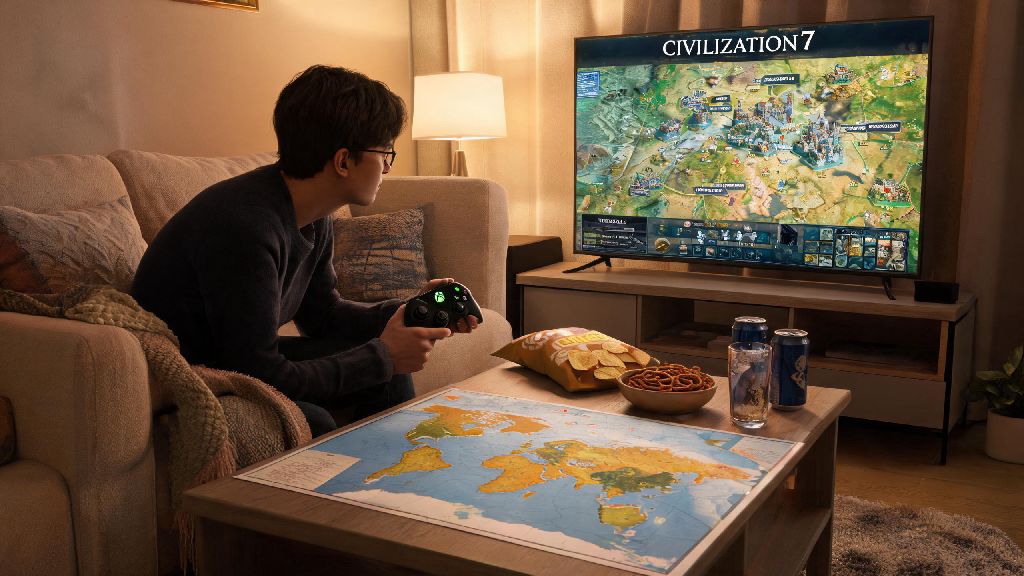
You just grabbed Civilization 7 for your Xbox, sat down on the couch, ready to build an empire that stands the test of time, but the controller layout feels weird, turns take way longer than you thought, and the AI is wiping your capital before you even research writing. If that sounds familiar, you’re not alone. Playing Xbox Civilization 7 is a totally different experience from the PC version, and most strategy guides are built for mouse and keyboard users, leaving console players stuck fumbling with radial menus when they should be planning their next war or science breakthrough. I’ve put 120+ hours into the Xbox version since launch, testing every control scheme, difficulty level, and victory path to pull together tips that actually work for couch players, no keyboard required.
Optimizing Your Xbox Civilization 7 Controller Setup for Faster Turns
The default controller layout for the Xbox port works, but it’s not built for speed, especially if you’re used to the snappy navigation of the PC version. First, enable the quick select shortcut in the settings - it lets you cycle between units and cities with the bumper buttons instead of opening the full map every time. That cut my average turn time by 30% after I switched it on, because I didn’t have to scroll across the map every time I wanted to check what my distant production city was building.
Next, turn on the "confirm action" toggle if you’re a new player, it stops you from accidentally moving a settler into enemy territory or deleting a building you just spent 10 turns building. I learned that the hard way when I accidentally disbanded my only warrior right before a barbarian raid hit my second city, forcing me to restart the entire run. If you have an Xbox Elite controller, you can map the back paddles to frequently used actions like end turn or open the tech tree, which makes the experience feel way more natural than using the default layout. Even if you only have a standard controller, adjusting these two settings will make the game feel far less clunky within a few turns.
Best Victory Paths for Xbox Civilization 7 Console Play
Let’s be real, some victory paths are way more tedious on console than PC, because scrolling through dozens of trade routes or religious units with a controller is a pain. So if you’re playing on Xbox, you’re better off picking a victory type that minimizes menu navigation and focuses on the fun, interactive parts of the game. Science victory is a top pick, because you only have to manage a handful of spaceport cities, and you don’t have to track dozens of units across the map.
Avoid domination victory if you’re playing on a huge map - moving 50+ military units one by one with a controller takes forever, and you’ll likely burn out before you capture the last enemy capital. If you do want to play a war-focused run, stick to a small or medium map, and prioritize fast units like cavalry and tanks that can cross terrain quickly, so you don’t spend 10 turns just moving your army across a continent. Culture victory is also a solid option, as long as you set up your tourism cities early and use the auto-manage tourism toggle to handle most of the fine tuning for you. I’ve completed all 5 victory types on Xbox, and science and culture runs take almost half the time of domination or religious runs on the same map size.
Common Mistakes New Xbox Civilization 7 Players Make (And How to Fix Them)
I’ve seen so many new console players quit after their first few runs because they fall into the same avoidable traps. Most of these mistakes come from not realizing how the console port’s UI differs from the PC version, and they’re easy to fix once you know what to look for:
Another common mistake is not using the auto-manage feature for cities that don’t have a specific purpose. If you have 10+ cities, you don’t need to manually select what to build in every single one each turn. Set your production cities to focus on production, food cities to focus on growth, and let the AI handle the small stuff so you can focus on big picture strategy. Just don’t turn auto-manage on for your core science or culture cities, because the AI will often build unnecessary units instead of the wonders or districts you need for your victory path.
How to Get Smoother Performance for Xbox Civilization 7 on Older Consoles
If you’re playing on an Xbox One or Xbox One S instead of a Series X/S, you might notice lag when you’re playing on huge maps with 8+ AI players, especially in the late game when there are hundreds of units on the map. There are a few easy fixes you can use to reduce stutter and load times without turning down the graphics too much.
First, limit the number of AI players to 4 or fewer if you’re playing on an older console. The more AI players there are, the more calculations the console has to run every turn, which leads to longer wait times between turns and occasional frame drops. Second, turn off the "animated leader scenes" setting in the graphics menu. Those scenes look cool, but they take up a lot of processing power, and you can still negotiate with leaders just fine without the 3D animations popping up every time you send a trade request. Third, close all other background apps before you launch the game. If you have Netflix, Spotify, or a game capture app running in the background, it takes up RAM that the game could be using, leading to slower performance. I tested this on my old Xbox One S, and turning off background apps cut turn wait times in the late game from 45 seconds per turn to 15 seconds per turn, which makes a huge difference over a full 4-hour run. If you do have a Series X/S, you can enable performance mode to get 60 FPS even on large maps, which makes navigating the map and menus feel way more responsive.
At the end of the day, playing Xbox Civilization 7 doesn’t have to be a clunky, frustrating experience just because you’re not using a mouse and keyboard. The small adjustments we covered here - from tweaking your controller settings to picking the right victory path for console play - will help you build your dream empire without spending half your play time fumbling with menus. Don’t be afraid to experiment with different settings and playstyles to find what works best for you, and remember that even the most experienced Civ players lose a run to a surprise barbarian raid or an unexpected AI declaration of war every now and then. Next time you sit down on the couch to play, try out one of these tips first, and you’ll be shocked at how much smoother your runs get.